Enable secure remote management for your Cloudmersive Private Cloud servers directly from the Cloudmersive Management Portal with the Cloudmersive Management Agent.
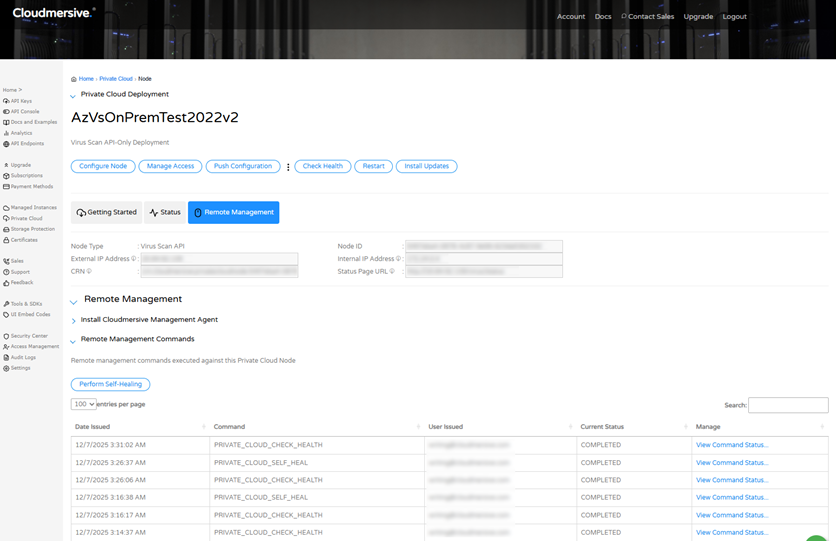
The Cloudmersive Management Agent can perform key functions including performing a remote service health check, service restart, installation of updates, and self-healing (manual or automated) - all right from your Cloudmersive Management Portal.
Setup
First, you will need to install the Cloudmersive Management Agent. Install the latest version of the Cloudmersive Private Cloud installer by following the installer update procedure. Then navigate to Private Cloud and then the relevant node, click on Remote Management and click on Enable Remote Management. Then run the InstallManagementAgent (copy this from the Management Portal; note that it will include unique IDs) command from C:\Cloudmersive in Administrator Powershell to install the management agent. No restart is required. You are now ready to begin performing commands. Ensure that all outbound endpoints are allowlisted in your network security.
Check Health
To check health of your Private Cloud server, navigate to the server in question, and click on Check Health. You will be taken to the command status page where you can view the output and results of the command. Click on Refresh to see the real-time logs from running this command. Once done, the command status will change to COMPLETED.
Restart
To restart the Cloudmersive Private Cloud server (not the server OS), click on Restart from the Private Cloud page in Cloudmersive Management Portal. You will be taken to a confirmation screen. After confirming, you will be taken to the command status page where you can view the restart progress. Click on Refresh to see the real-time logs from running this command. Once done, the command status will change to COMPLETED.
Install Updates
To install updates on your Cloudmersive Private Cloud server (not the server OS), click on Install Updates from the Private Cloud page in Cloudmersive Management Portal. You will be taken to a confirmation screen. After confirming, you will be taken to the command status page where you can view the update installation progress remotely and in real time. Click on Refresh to see the real-time logs from running this command. Once done, the command status will change to COMPLETED.
Self-Healing (Manual)
To perform self-healing manually on your Cloudmersive Private Cloud server, click on Remote Management and then Perform Self-Healing from the Private Cloud page in Cloudmersive Management Portal. You will be taken to the command status page where you can view the self-healing progress. Click on Refresh to see the real-time logs from running this command. Once done, the command status will change to COMPLETED.
Self-Healing (Automated)
Cloudmersive Management Agent can also be configured to automatically monitor the health of your service and run self-healing automatically. To do this, navigate to the relevant Private Cloud node in the Cloudmersive Management Portal and click on Configure Node. Enable Enable Continuous Self Healing of Private Cloud Node and click on Save Changes. It will take up to 10 minutes for the changes to take effect. You can view the relevant logs on the server at C:\Cloudmersive\selfhealing.log.
Permissions
Administrator or Child Administrator permissions are required to issue commands.
Command Auditing
All commands remotely issued against a Private Cloud server can be viewed by clicking on Remote Management in the Cloudmersive Management Portal. Here you can see the date and time a command was issued, which command was issued, who issued it, and also the ability to view the detailed command output.
Server Logs
You can view Cloudmersive Management Agent logs on your server at C:\CloudmersiveManagementAgent\agent.*.log.

 Knowledge Base

 Virus Scan APIs
 Content Disarm and Reconstruction APIs
 Spam Detection APIs
 Document Conversion & Processing APIs
 Document AI APIs
 Natural Language Processing (NLP) APIs
 Optical Character Recognition (OCR) APIs
 Image and Face Recognition and Processing APIs